Introduction
HP laptops combined with Windows 8 brought significant innovation to the tech industry. Known for reliability and performance, HP embraced Windows 8’s new interface and touch-centric features, creating a new experience for users. This guide explores the history, distinctive features, and optimization tips for these unique laptops, offering valuable insights for owners and tech enthusiasts alike.
History of HP Laptops with Windows 8
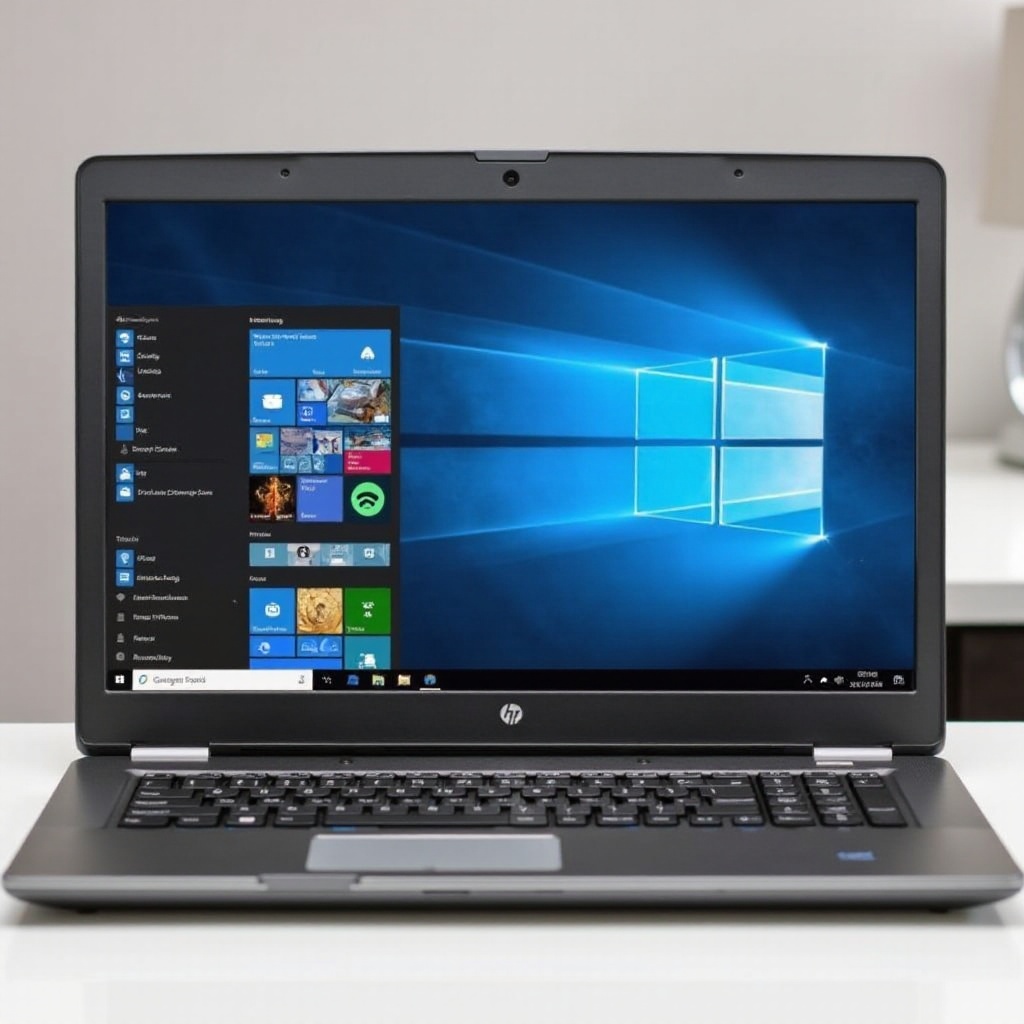
The integration of Windows 8 into HP laptops marked a transformative phase in their evolution. Known for durable and high-performing machines, HP enhanced their offerings with Windows 8’s capabilities. This operating system introduced a modern, touch-friendly interface that aligned with HP’s vision of innovation. Upon release, HP’s strategic incorporation of Windows 8 attracted diverse users, from novices to seasoned professionals.
HP capitalized on this synergy, aligning hardware capabilities with software improvements to offer a seamless user experience. This shift not only improved functionality but also expanded HP’s appeal to a broader customer base, making their laptops a preferred choice for people seeking both value and performance.
Key Features of HP Laptops with Windows 8
The collaboration between HP and Windows 8 resulted in several standout features.
-
Design and Build Quality: HP laptops with Windows 8 boasted sleek, professional designs made from durable materials, ensuring longevity.
-
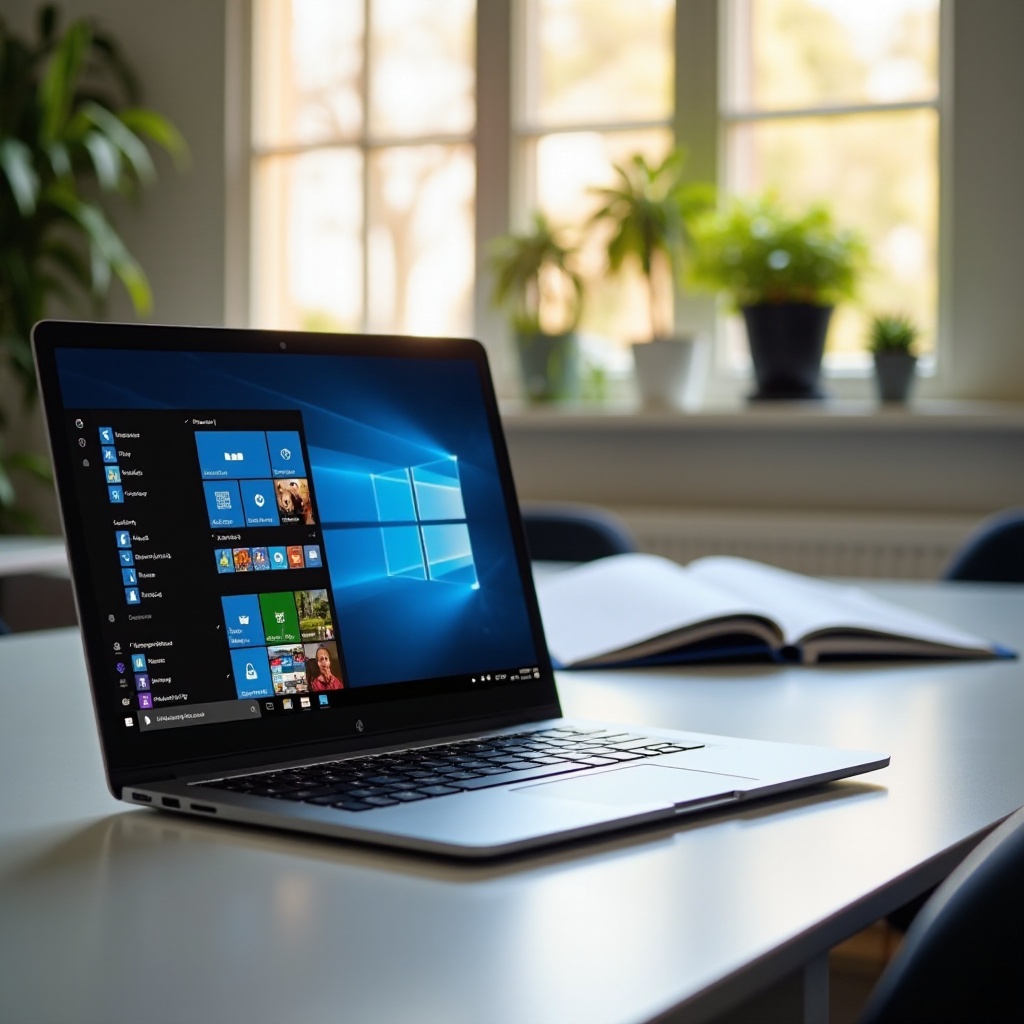
User Interface and Accessibility: Windows 8’s innovative user interface, featuring Live Tiles and a Start screen, was a game-changer, making navigation easy and intuitive, especially on HP’s responsive touchscreens.
-
Performance Enhancements: These laptops were quicker to boot and handle multitasking efficiently, thanks to optimized resource management. HP’s focus on battery longevity meant users could enjoy extended use without frequent charging.
These features exemplified HP’s commitment to quality and innovation, helping users maximize productivity and enjoy a seamless computing experience.
Popular HP Models Featuring Windows 8
HP launched several successful models featuring Windows 8, each catering to different user needs.
-
HP Envy Series: Known for robust performance, the Envy Series was ideal for power users and creatives, offering top-notch graphics and processing power.
-
HP Pavilion Series: These models balanced performance with affordability, appealing to students and everyday users seeking reliability without breaking the bank.
-
HP Spectre Series: As a premium line, Spectre laptops offered cutting-edge technology and design, perfect for those wanting luxury and innovation.
These popular models demonstrated HP’s ability to offer a diverse range of laptops, each designed to meet specific demands while leveraging the strengths of Windows 8.
Optimizing Windows 8 Performance on HP Laptops
Ensuring continued high performance on HP laptops running Windows 8 requires regular maintenance and strategic upgrades.
- Essential Maintenance and Cleanup:
- Keep system software and drivers updated.
- Use tools like Disk Cleanup to free up space and improve performance.
-
Regularly defragment hard drives if they aren’t SSDs.
-
Upgrading Hardware:
- Increasing RAM can significantly boost performance.
-
Solid State Drives (SSDs) are recommended for faster boot and load times.
-
Effective Software Management:
- Remove unnecessary applications and manage startup programs to enhance speed and efficiency.
- Use updated antivirus software to protect against threats.
With these strategies, users can ensure their HP laptops achieve optimal performance, extending their usability and enjoyment.
Transitioning from Windows 8: Options and Considerations
As technology progresses, users may consider upgrading their HP laptops from Windows 8 to newer operating systems like Windows 10 or 11, which offer enhanced security, new features, and better support for modern applications. Transitioning to a new OS extends the life of your device, making it relevant in today’s fast-evolving digital landscape.
Before upgrading, users should:
– Backup important data to avoid loss during the transition.
– Verify application compatibility with the new OS.
– Ensure their hardware meets the requirements of the new operating system.
By following these steps, users can seamlessly upgrade, enjoying the benefits of modern advancements and maintaining the usability of their HP laptops.
Conclusion
HP laptops with Windows 8 remain a significant milestone in the evolution of computing technology. By combining HP’s reputation for quality with the innovative features of Windows 8, these devices offered users a unique blend of performance, design, and functionality. As technology evolves, understanding the legacy of HP laptops with Windows 8 can offer valuable insights into both maximizing current systems and considering future upgrades.
Frequently Asked Questions
What are the minimum hardware requirements for running Windows 8 on HP laptops?
Windows 8 requires at least a 1 GHz processor, 1 GB RAM for 32-bit or 2 GB for 64-bit systems, and 16 GB of hard drive space for installation.
Can I still receive support for Windows 8 on my HP laptop?
Microsoft has ended support for Windows 8, but HP may still offer hardware-related support. Check with HP for specific assistance.
How do I upgrade my HP laptop from Windows 8 to a newer operating system?
To upgrade, download the installation media for the new OS, create a backup, and follow the installation instructions. Ensure your hardware meets the new system’s requirements.