Introduction
Pairing your iPhone with Chromecast opens up a world of seamless streaming possibilities. This guide walks you through each step of the process, ensuring you can enjoy all your favorite content on the big screen. Whether you are looking to watch videos, listen to music, or showcase photos, we’ll make the setup simple and efficient for you.
Understanding Chromecast and iPhone Compatibility
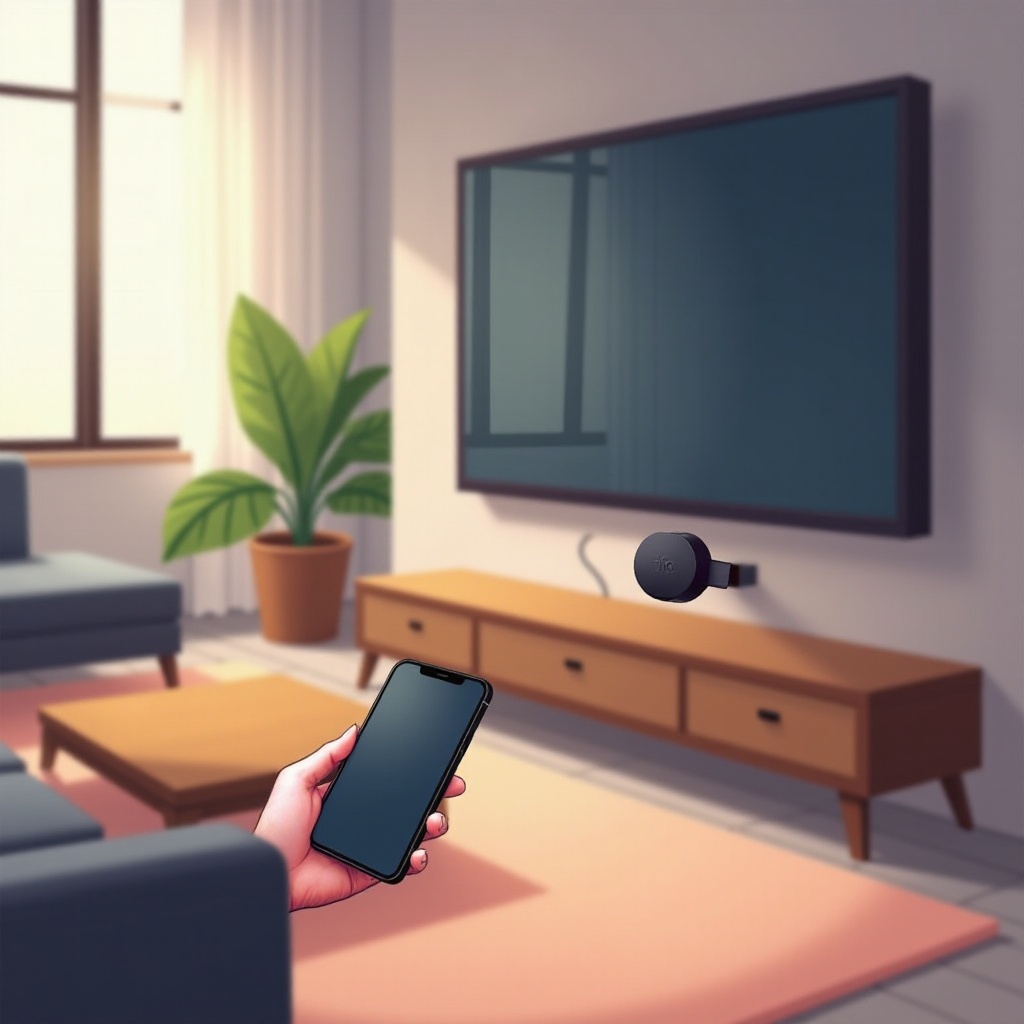
Before you start the setup process, it’s essential to ensure your devices are compatible. Chromecast is designed to work seamlessly with most iPhone models, provided they run iOS 12.0 or later. Your iPhone essentially functions as a remote control, allowing you to stream content from compatible apps directly to your TV. This integration provides a convenient and hassle-free streaming experience.
Setting Up Chromecast with Your TV
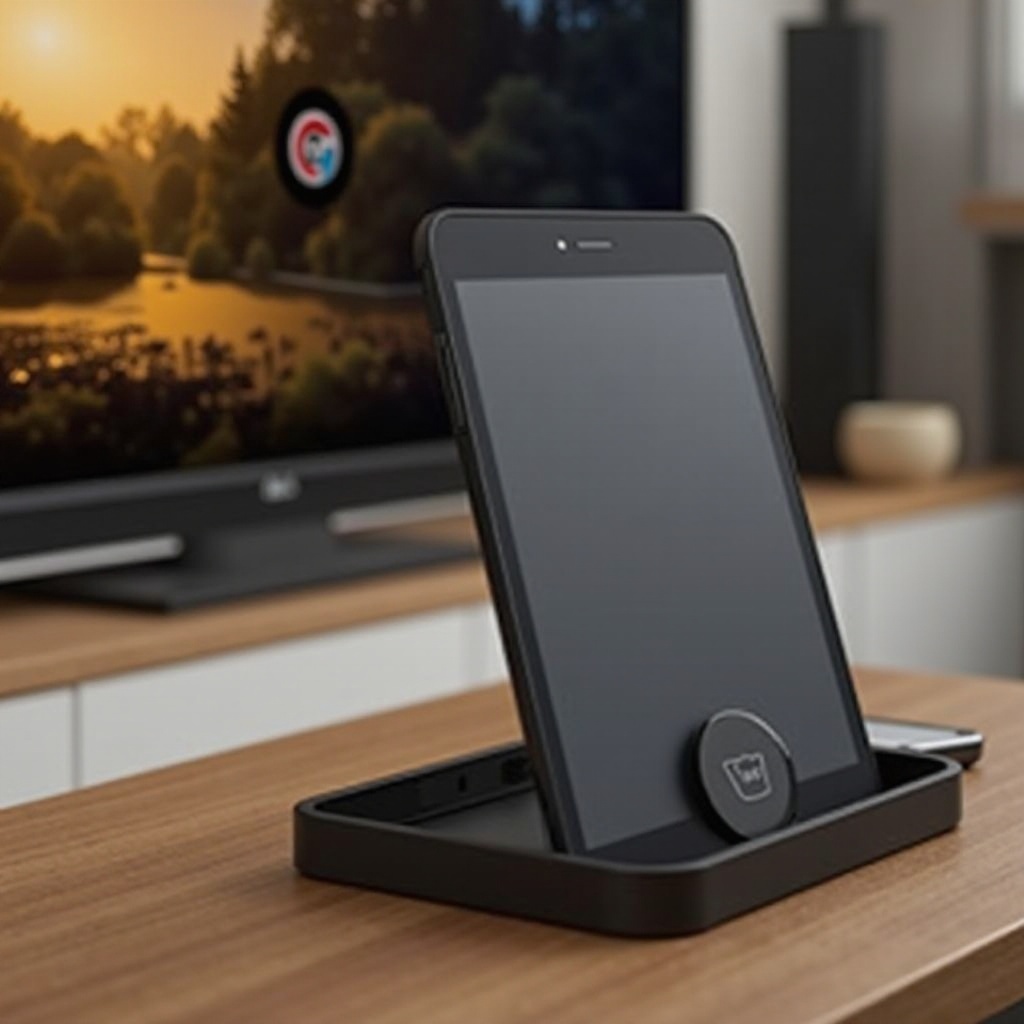
To begin, make sure your Chromecast is properly connected to your TV:
- Unbox your Chromecast and connect it to the HDMI port on your TV.
- Attach the USB power cable to the Chromecast and plug the other end into a power outlet.
- Change your TV’s input to the corresponding HDMI channel.
- Follow the on-screen instructions to connect your Chromecast to the Wi-Fi network.
Once your Chromecast is correctly set up, move on to pairing it with your iPhone for an integrated experience.
Using the Google Home App for Connection
The Google Home app is critical for successfully pairing your iPhone with Chromecast:
- Download the Google Home app from the App Store.
- Launch the app and sign in with your Google account, or create one if needed.
- Ensure your iPhone is on the same Wi-Fi network as your Chromecast.
- In the app, select ‘Set up new devices’ from the home screen.
- Follow on-screen prompts to link your Chromecast with the app.
By completing these steps, your iPhone will integrate with Chromecast, allowing easy control and management of your streaming activities.
Steps to Pair Your iPhone with Chromecast
With your devices set up, you can begin the pairing process:
- Open the Google Home app on your iPhone.
- Choose your Chromecast device from the list.
- Tap ‘Cast my screen’ or use compatible apps that include Chromecast functionality.
- Open a video, music, or photo app that supports casting.
- Locate and tap the ‘Cast’ icon to link with your Chromecast.
These steps allow you to cast content from your iPhone directly to your television, enhancing your viewing experience significantly.
Casting Content from iPhone to TV
With your iPhone and Chromecast paired, it’s time to enjoy streaming:
- Videos: Launch apps like YouTube or Netflix, play a video, and tap the ‘Cast’ icon for streaming.
- Music: Use Spotify or Apple Music, pick a playlist, and cast it to enjoy superior sound on your home speakers.
- Photos: Open your photo app, select images to display, and cast them to share special moments on a larger screen.
Should any issues arise during streaming, the next section provides troubleshooting tips to help you resolve them.
Troubleshooting Common Issues
At times, you might face challenges while pairing your devices. Address these common issues with these solutions:
- Confirm that both your Chromecast and iPhone are on the same Wi-Fi network.
- Restart your router and TV to refresh the connection.
- Update apps as outdated software can cause compatibility problems.
- Disconnect and reconnect the devices if casting does not initiate.
Resolving these issues will help ensure a smooth and uninterrupted streaming experience.
Advanced Tips for Enhanced Streaming
Maximize your Chromecast experience with these tips:
- Opt for a high-speed internet connection to maintain smooth streaming with minimal buffering.
- Explore apps featuring native Chromecast support for an expanded selection of media.
- Experiment with Google Assistant for hands-free, voice-controlled streaming commands via your iPhone.
Conclusion
By pairing your iPhone with Chromecast, you unlock a new realm of entertainment possibilities. Following this guide allows you to connect your devices seamlessly and enjoy your media more conveniently. Dive into your favorite shows, music, and photos, and relish your new viewing setup!
Frequently Asked Questions
Can I use Chromecast with older iPhone models?
Yes, as long as they are running iOS 12.0 or later.
What apps are compatible with Chromecast for casting?
Popular apps like YouTube, Netflix, Spotify, and Google Photos support Chromecast casting.
Why is my iPhone not connecting to Chromecast?
Ensure both devices are on the same Wi-Fi network. Restart devices to resolve any temporary issues.