Introduction
USB drive recognition issues in Windows are common yet frustrating, often disrupting productivity and data accessibility. Grasping the root causes and applying effective solutions can mitigate these issues, saving you time and stress. Whether it’s due to hardware malfunctions or software anomalies, multiple troubleshooting techniques exist to diagnose and remedy the problem efficiently.
Encountering a non-responsive USB drive can trap crucial data, making resolution vital. This guide provides tested solutions, equipping you with necessary troubleshooting skills and preventive tips for the future.
Common Causes of USB Recognition Issues
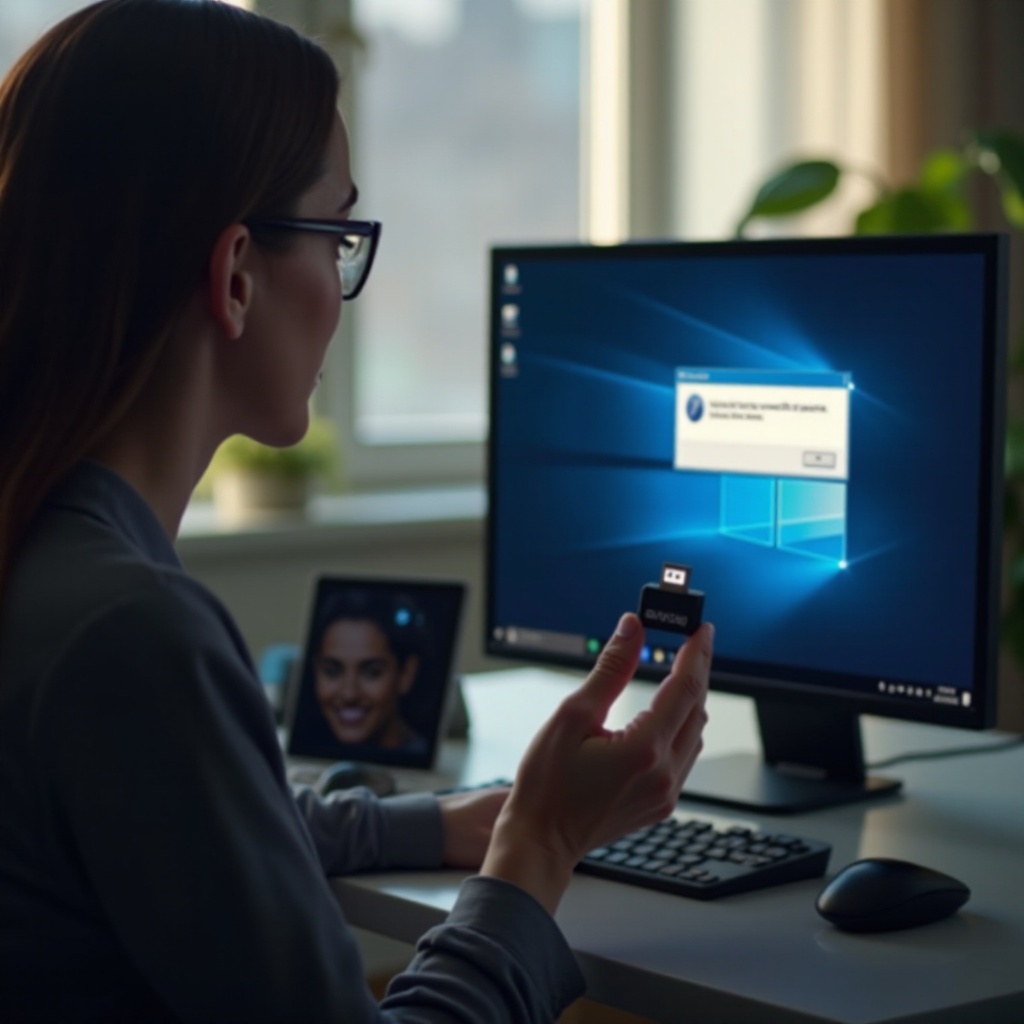
USB recognition issues can arise from various factors. Hardware failures, such as damaged USB ports or drives, are frequent culprits. Checking for physical damage is a vital first step.
Outdated or corrupted drivers significantly contribute, as they interfere with Windows’ ability to communicate with USB devices. Malware can also disrupt system operations, causing recognition failures; hence, regular system scans are essential.
Additionally, power management settings might inadvertently disable USB functions to conserve energy, particularly in laptops, complicating USB operations. Understanding these causes lays the groundwork for systematic troubleshooting.
Bridging to Preliminary Checks and Simple Solutions
Armed with knowledge of common causes, let’s proceed to initial checks and uncomplicated solutions that often rectify USB recognition issues without need for further intervention.
Preliminary Checks and Simple Solutions
Before delving into complex solutions, perform some preliminary checks. Try using a different USB port or cable, as the issue might be isolated to a specific port or cable.
- Restart your computer. Restarting can clear temporary glitches blocking USB detection.
- Test the USB drive on another computer. If it works, the issue may lie within your device’s USB port or driver.
- Scan for hardware changes. In ‘Device Manager,’ click ‘Action,’ then ‘Scan for hardware changes’ to identify connected devices.
These simple steps often uncover the issue quickly. If problems persist, advancing to driver updates and reinstallations becomes essential.
Updating and Reinstalling USB Drivers
Drivers are critical to hardware recognition. To check and update your drivers:
- Open Device Manager. Press ‘Windows + X’ and select ‘Device Manager.
- Expand the ‘Universal Serial Bus controllers’ section.
- Right-click the USB driver and select ‘Update driver.’ Choose ‘Search automatically for updated driver software.
- Reinstall the driver if needed. Right-click the device, select ‘Uninstall device,’ and restart your computer to allow Windows to reinstall default drivers.
Consistently updating drivers reduces software-related recognition problems. If updates fail to resolve the issue, check power management settings next.
Bridging to Power Management Settings Adjustments
After tackling driver issues, consider power management adjustments that may impact USB functionality, particularly if your device consistently exhibits power-saving behavior.
Power Management Settings Adjustments
Adjusting power management settings might resolve USB recognition problems.
- Open Device Manager and go to the ‘Universal Serial Bus controllers’ section.
- Right-click a USB Root Hub entry, select ‘Properties.’
- Navigate to the Power Management tab and uncheck ‘Allow the computer to turn off this device to save power.
- Repeat for each USB Root Hub entry.
These changes ensure USB ports receive uninterrupted power, reducing power-induced disruptions. Should issues persist, exploration of Disk Management becomes necessary.
Disk Management and Drive Letter Assignment
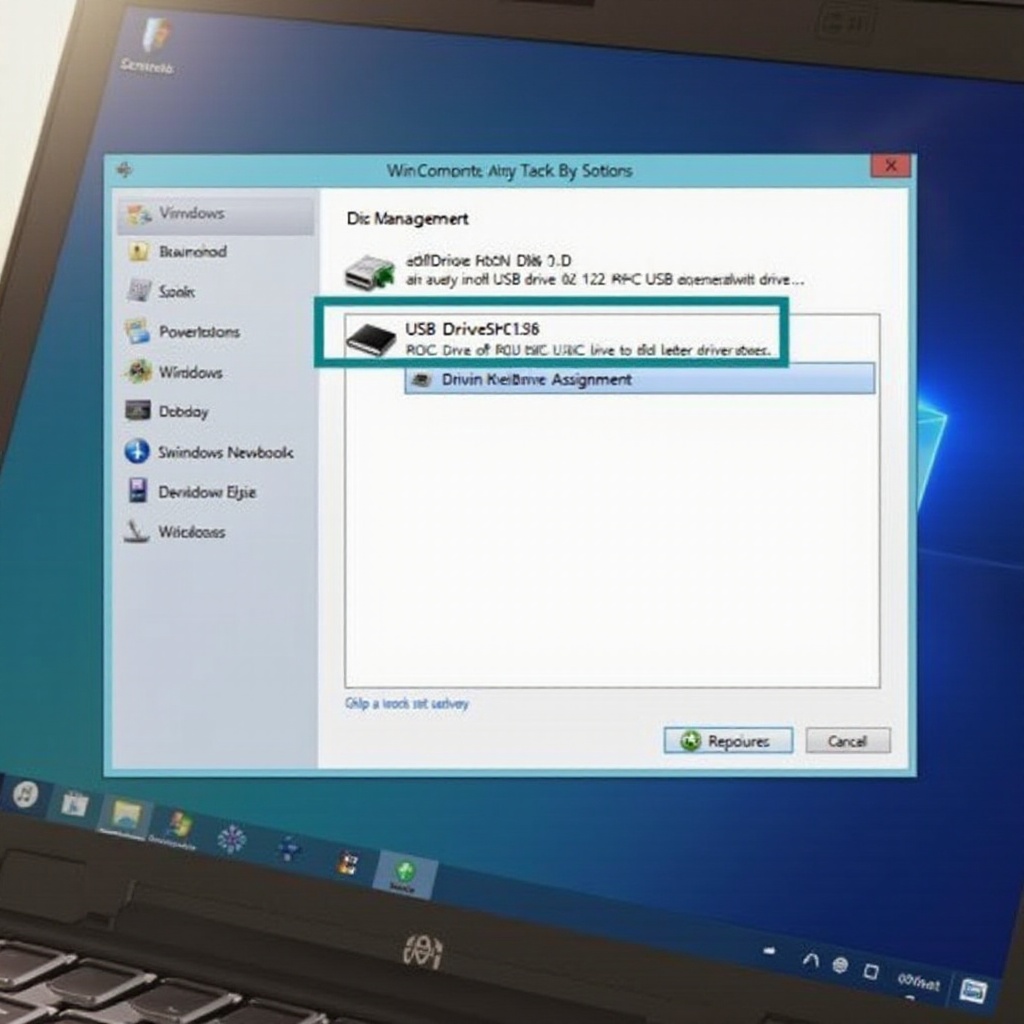
Using Disk Management to solve USB recognition issues can be effective, particularly if a USB drive lacks an assigned drive letter.
- Open Disk Management by pressing ‘Windows + X’ and selecting ‘Disk Management.
- Find your USB drive, typically labeled ‘Removable.
- Right-click the drive and choose ‘Change Drive Letter and Paths.
- Assign a new drive letter that isn’t already in use.
Properly assigning drive letters can make USB drives visible again. If visibility issues continue, additional advanced troubleshooting may be required.
Transitioning to Advanced Troubleshooting Techniques
Following drive assignment adjustments, we move to more sophisticated troubleshooting for persistent recognition issues.
Advanced Troubleshooting Techniques
For ongoing issues, advanced troubleshooting could provide solutions. Begin by examining and repairing file system errors.
- Utilize Windows Error Checking. Right-click on the USB drive in File Explorer, choose ‘Properties,’ then select the ‘Tools’ tab and click ‘Check’ under ‘Error checking.
- Run Command Prompt as an administrator and execute
chkdsk /f X:, replacing ‘X’ with your drive letter.
Should these steps not resolve the issue, consider reverting your system to a prior restore point when the USB was recognized. Always maintain backups as restores can affect various system aspects unexpectedly.
Conclusion
Addressing Windows USB drive recognition issues demands a structured approach. By understanding common causes and systematically applying solutions, users can often self-resolve these complications. From basic checks to advanced troubleshooting, there’s a method suitable for each tech-savvy level. Keeping drivers updated and maintaining strong security practices helps minimize future data disruptions and optimizes performance.
Frequently Asked Questions
Why is my USB drive not showing up on Windows 10 and 11?
Common reasons include hardware issues like faulty USB ports, outdated or missing drivers, or lack of drive letter assignment. Malware could also interfere.
How can I prevent USB recognition issues in the future?
Regularly update drivers, perform system scans to prevent malware, and ensure power settings don’t disable USB ports. Using reliable USB brands also helps.
Is it safe to use third-party USB diagnostic tools?
While some third-party tools can be useful, they carry risks. Opt for reputable software with positive reviews and ensure your security software is active. Always backup important data before using unverified tools.