Introduction
Changing your iPad’s device name is a simple yet impactful way to personalize your device. Whether managing multiple devices or showcasing your individual style, renaming your iPad makes it easily identifiable and secure. Follow our comprehensive guide to learn how to change your iPad’s name and enjoy a more personalized tech experience.
Understanding the Importance of Changing Your iPad’s Device Name
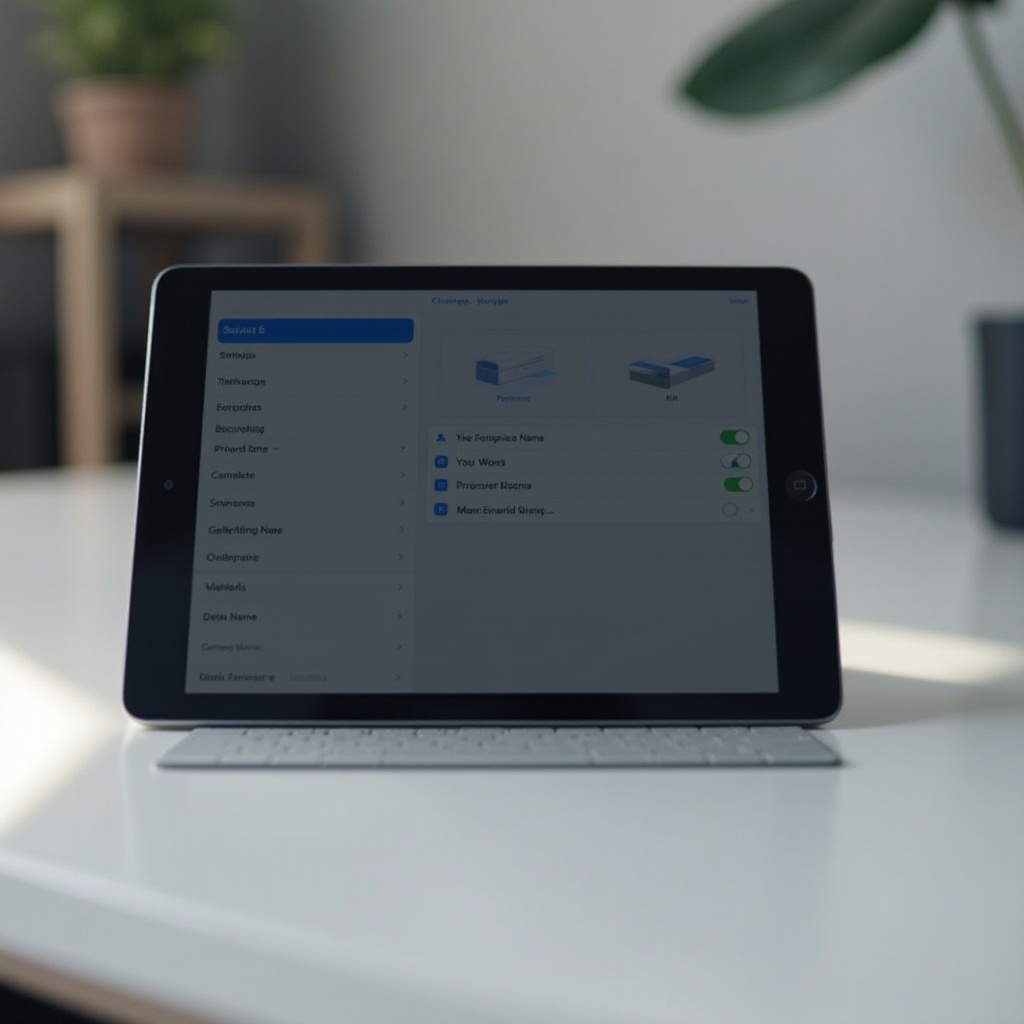
Renaming your iPad provides various benefits, emphasizing personalization and privacy. It helps in distinguishing your device when connected to public networks or within a cloud ecosystem. Often, default device names reveal personal information or use generic identifiers. Customizing the name not only reflects your personality but also enhances management efficiency in settings and platforms that list all associated devices.
When your iPad showcases a distinctive name, device management becomes more straightforward. It allows for easy identification within Apple iCloud, facilitating seamless synchronization and operation, which ultimately simplifies troubleshooting and software updates.
Step-by-Step Guide to Changing Your iPad’s Device Name
Changing the device name directly from your iPad is straightforward, and here is how you do it:
- Preparing Your iPad for a Name Change:
- Ensure your iPad is sufficiently charged to prevent mid-process interruptions.
-
Performing an iCloud backup can be optional but is usually advised for safeguarding your recent data modifications.
-
Accessing the Settings and Navigating to General:
- Locate and open the ‘Settings’ app on your iPad’s home screen.
-
Tap on ‘General,’ which you should find near the top of the options list.
-
Editing and Saving the New Device Name:
- In ‘General,’ tap on ‘About.
- Here, you’ll notice your iPad’s current name. Tap to enter the editing mode.
- Erase the existing name and type your preferred name.
- Press ‘Done’ on your keyboard to preserve these settings.
After saving, grant the system a moment to apply changes. Your iPad will now display this name during connections or AirDrop interactions, providing clarity and uniqueness among devices.
Additional Customization Options for Your iPad
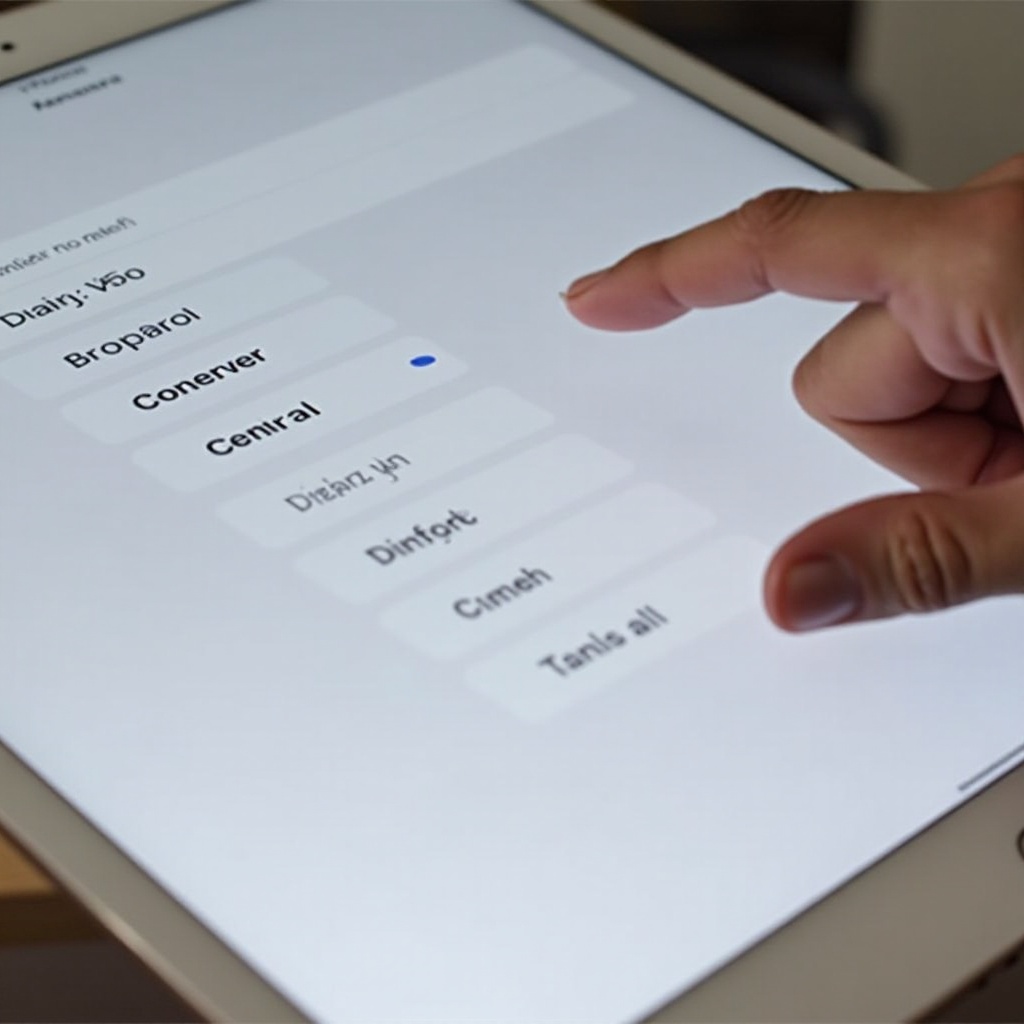
Beyond changing your device name, other personalization options can enrich your iPad experience:
- Personalizing with Wallpapers and Widgets:
- Navigate to ‘Settings’ > ‘Wallpaper’ to choose dynamic, still, or live backgrounds.
-
Add widgets to your home screen to access essential information instantly, like weather forecasts or news.
-
Managing Connected Devices and Services:
- Refresh the device list by signing into iCloud, which helps apply the new device name across your Apple network.
- Consider uniformity by renaming other Apple devices under your ownership for seamless recognition.
Customizing visual elements and settings complements the device name change, creating a tailored user interface that enhances both aesthetics and functionality.
Troubleshooting Common Issues with Device Name Changes
Encountering issues while changing your device name can happen. Address these with ease using some simple troubleshooting steps:
- When the Name Change Doesn’t Save:
- Confirm that you selected ‘Done’ post-editing the name.
-
A quick device restart can address any delays in reflecting changes.
-
Sync Issues with iCloud:
- Ensure a stable Wi-Fi connection and sign in to iCloud to assure name synchronization across all linked devices.
- Persisting issues can often be solved through signing out of iCloud and signing back in, verifying that all synchronization settings are properly enabled.
Troubleshooting is rarely necessary, but knowing quick solutions prepares you for any disruptions in the customization process.
Conclusion
Changing your iPad’s device name can enhance both its individuality and its security. By following the simple steps outlined, you can rename your iPad and enjoy additional customizations that reflect your preferences. Embrace the various ways to personalize your device, crafting a tech landscape that complements your identity while streamlining usability.
Frequently Asked Questions
Does Changing the Device Name Affect App Settings?
No, renaming your iPad does not affect any app-specific settings or data. It only changes how the device is identified.
How Often Can You Change the Device Name?
You can change your iPad’s device name as often as desired without any restrictions.
Will Other Devices Recognize the Change Automatically?
Yes, once your device name is changed, networks, AirDrop, and Apple services will automatically display the new name.